
Documentation
Quick start
Set up Renamo and rename your first invoices
Open Renamo
Launch Renamo.app. On first run, Renamo guides you through onboarding before showing the main window.
Part of onboarding is signing in with Google or email.
Add files
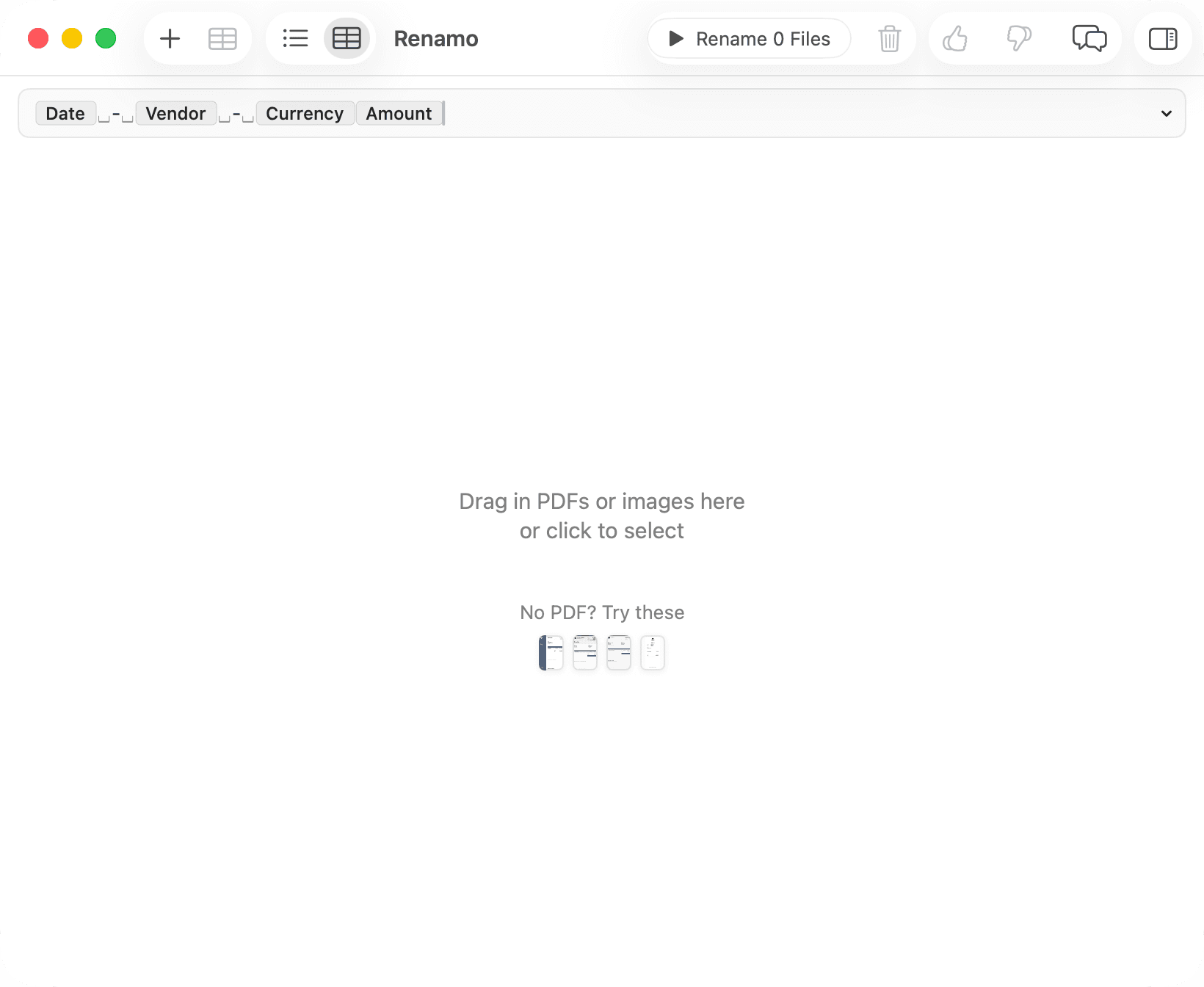
Drag PDFs or images into the file list, click the empty state, or choose File → Add PDFs or Images....
No files handy? Click the sample invoice thumbnails in the empty state.
Wait for generated names
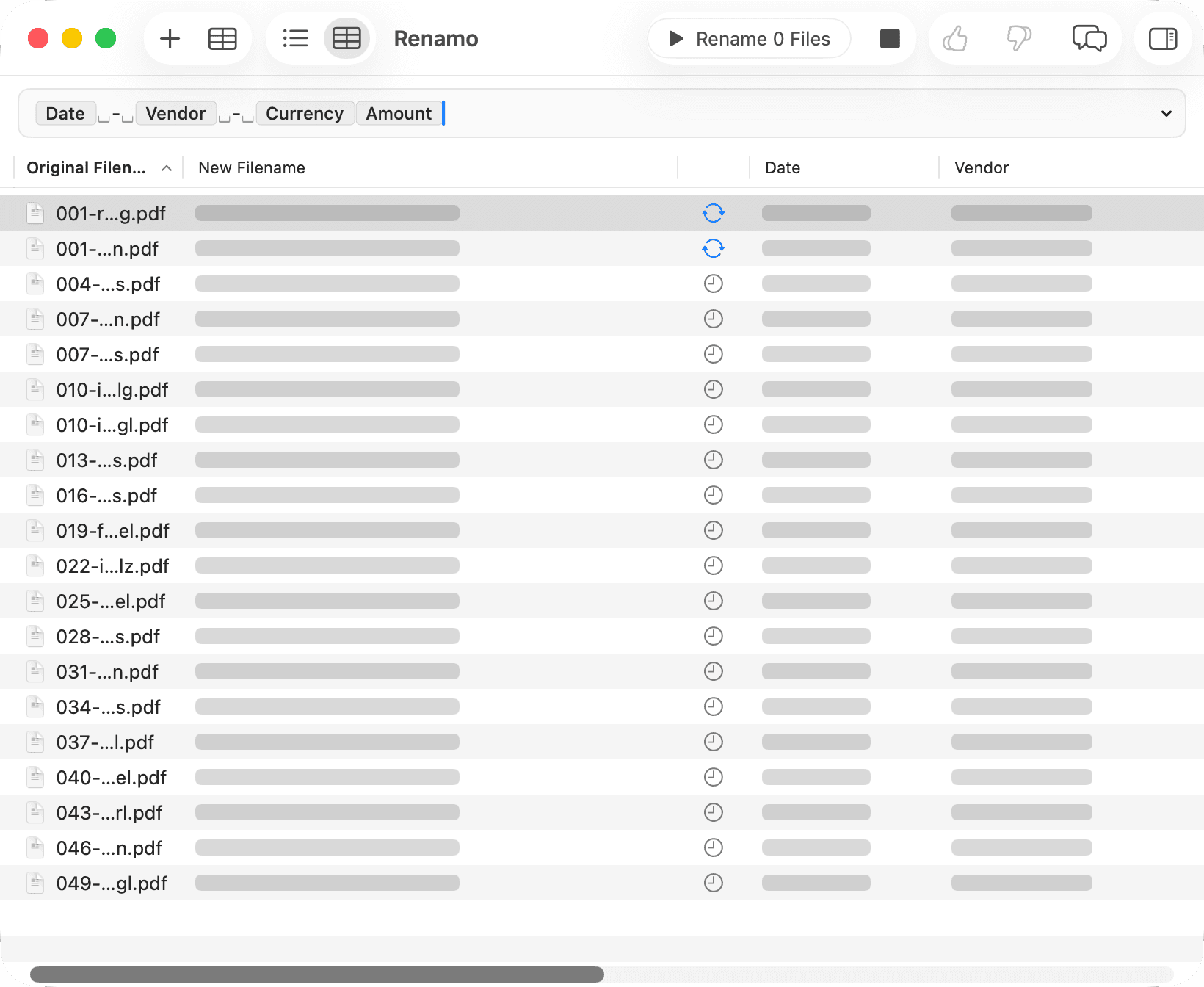
Renamo queues new files, processes up to two at a time, and shows each generated filename in the sidebar when it is ready.
Review and rename
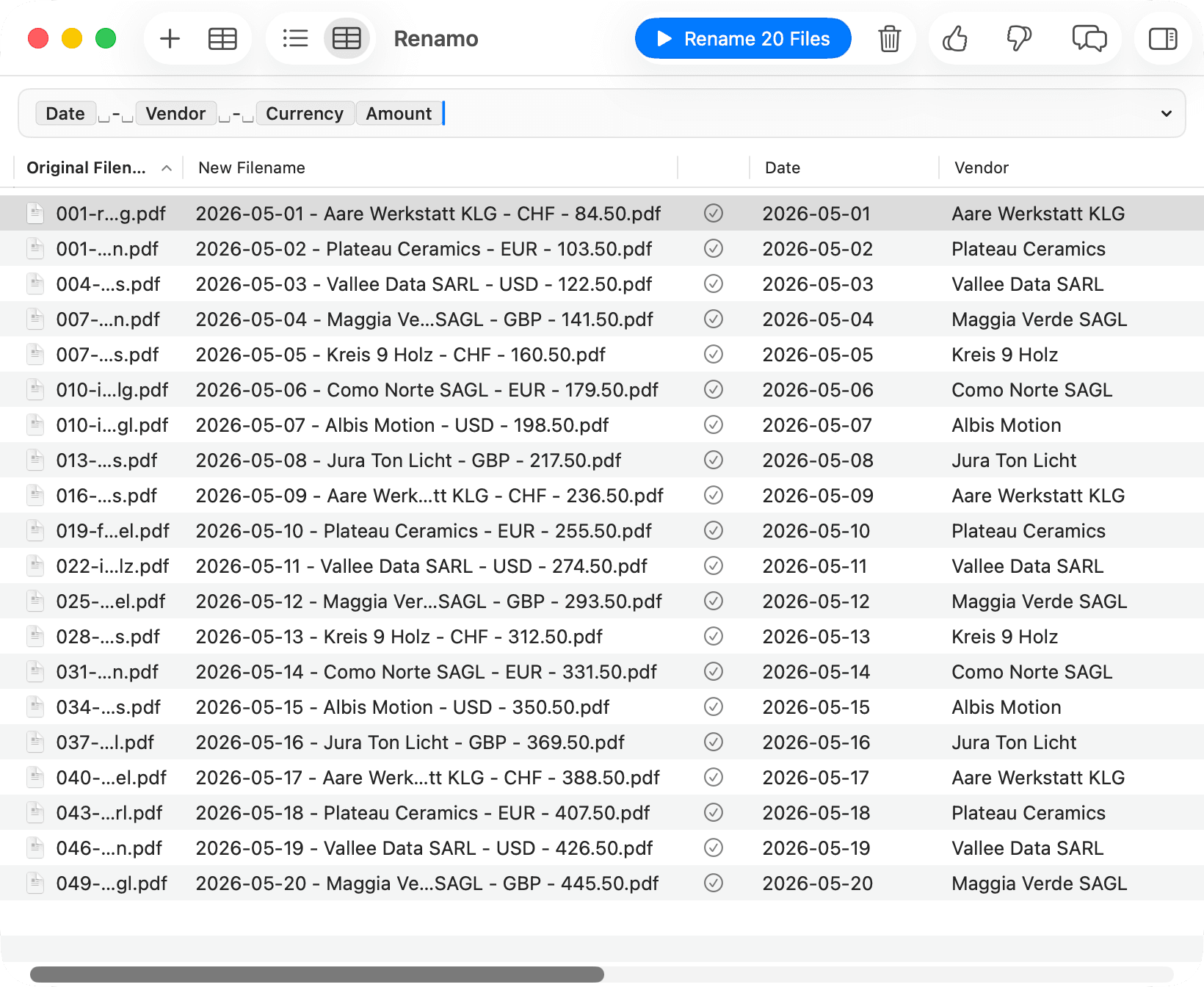
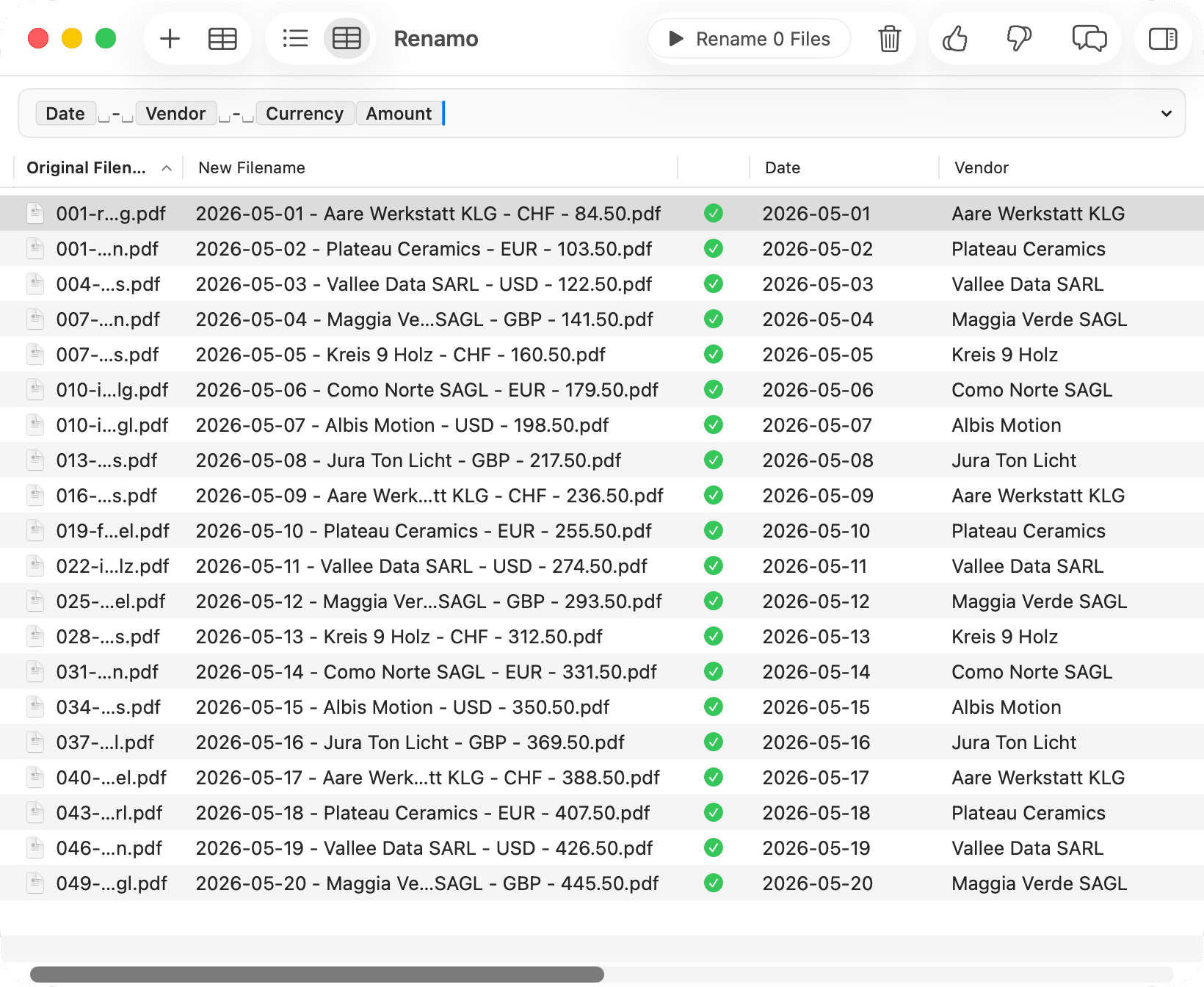
Select a file to preview it. Edit the generated filename if needed, then click Rename All or choose File → Rename All.
Requirements
- macOS 14 or later
- Apple silicon recommended for larger local models
- Small is available only on some Macs
- About 12 GB unified memory and enough free disk space if you use Medium